Quick links in this guide
💡 TL;DR: Map the Jira fields your team already uses, such as invoice number, customer email, or invoice status, to the matching Xero invoice fields.
Enter the matching value on the Jira issue, then open the Xero activity tab to see the related invoices.
Start with Xero Invoice Number for the most accurate search, then add status, customer, or reference filters as needed.
✅ Result: Users can find the right Xero invoice faster without leaving Jira.
ℹ️ Why this matters: Filtering helps users quickly find the right Xero invoice from a Jira issue, instead of switching tools or checking several invoice records manually.
Xero for Jira uses values from mapped Jira custom fields to search Xero invoice records. In simple terms, the app looks at the invoice-related information entered on the Jira issue and uses it to find matching invoices in Xero.
Filters are set up in Field Mapping. A field mapping simply means linking one Jira field to one Xero field, so the app knows what information to compare.
💡 Tip: Use fields that users already recognise, such as Xero Invoice Number, Customer Email, or Invoice Status. This keeps the search easy to understand and reduces mistakes.
ℹ️ Why this matters: These are the most useful fields for finding the correct invoice or customer record. Choose the field that best matches how your team identifies invoices today.
Jira Custom Field Example | Xero Field | Example Value |
|---|---|---|
Xero Invoice Number | Invoice Number |
|
Invoice Reference | Reference |
|
Invoice status | Status |
|
Customer Name | Contact Name |
|
ℹ️ Why this matters: Status filtering helps users focus on invoices at a specific stage, such as invoices that are still draft, already authorised, fully paid, or submitted for processing.
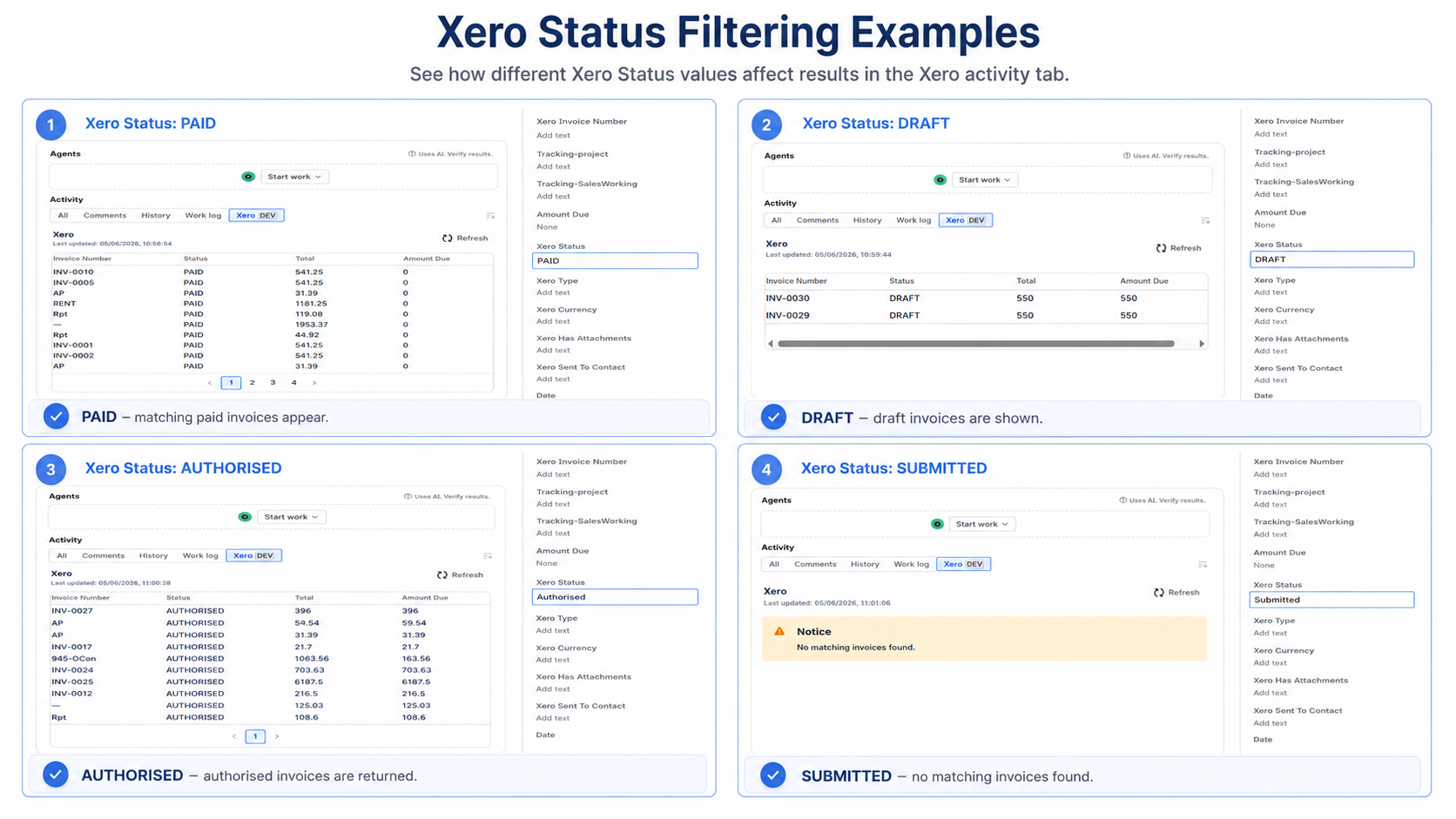
Use invoice status when users want to filter invoices by where they are in the Xero workflow, for example Draft, Authorised, Paid, or Submitted.
To use this filter, create a Jira custom field for invoice status and map it to the Xero Status field. The Status field is the label Xero uses to show the invoice stage.
Example mapping:
Jira Custom Field | Xero Field |
|---|---|
Invoice Status | Status |
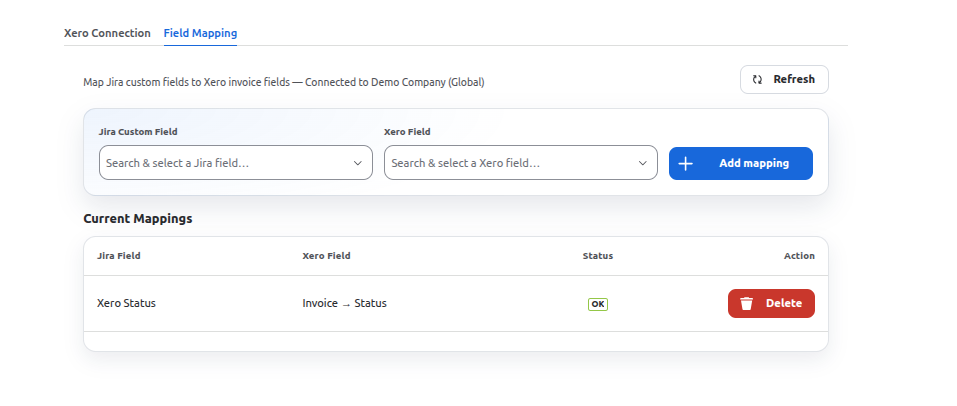
Example value in Jira:
💡 Tip: Use the same status wording that Xero expects. This helps the app match the value correctly when users refresh the Xero activity tab.
Jira Field | Value |
Invoice Status |
|
✅ Expected result: When the user opens the Xero activity tab, the app searches Xero for invoices with the selected status. If matching invoices are found, they appear directly inside the Jira issue.
ℹ️ Why this matters: Amount filters help users find invoices based on money owed or the full invoice value, which is useful when finance or project teams need to check payment amounts quickly.
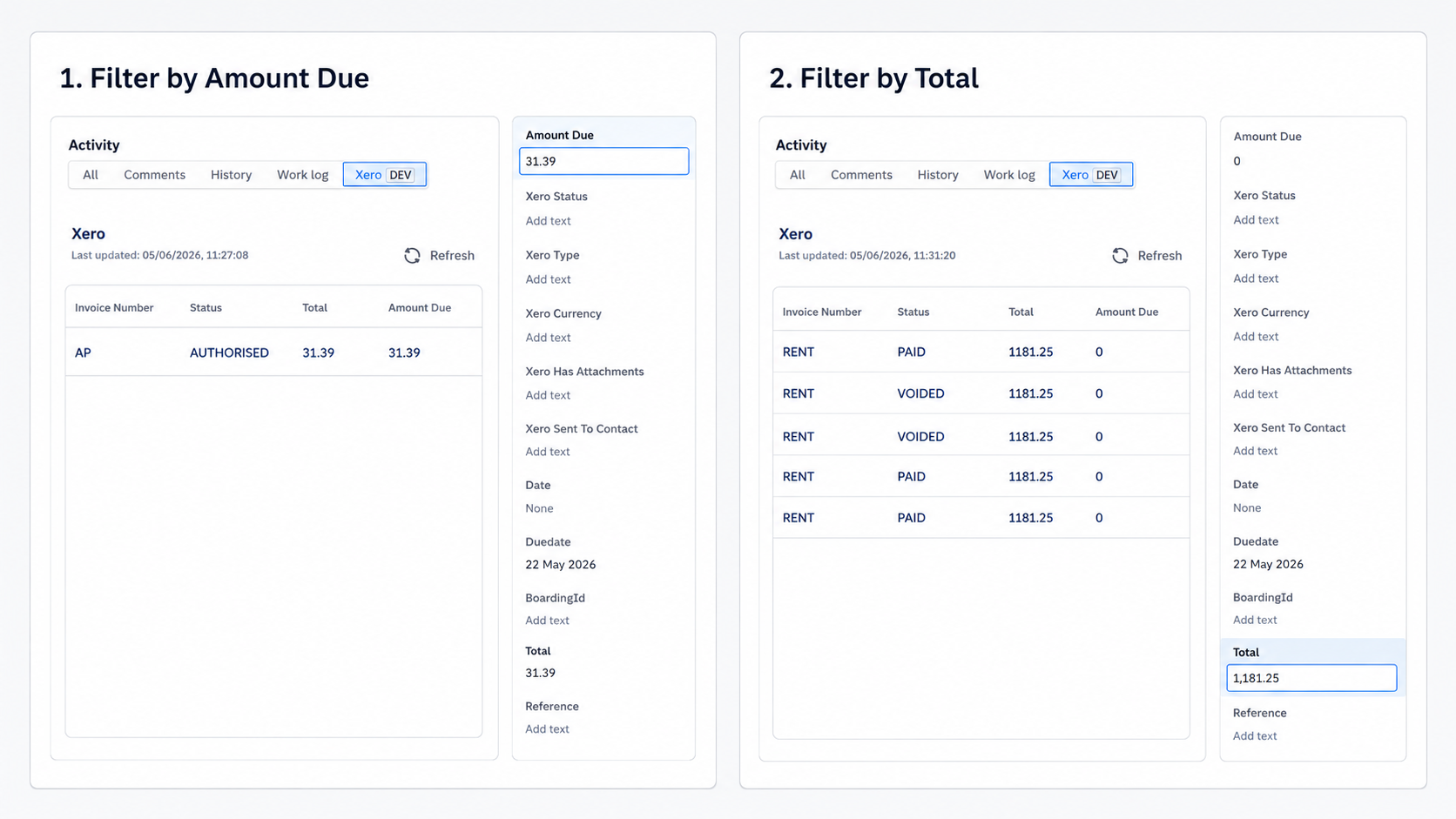
Use Amount Due when users need to find invoices with an outstanding balance. Use Total when users need to search by the full invoice amount, including amounts that may already be paid.
To use this filter, create a Jira custom field for the amount and map it to the matching Xero field, such as Amount Due or Total.
Example mapping:
Jira Custom Field | Xero Field |
|---|---|
Amount Due | Invoice->Amount Due |
Total | Invoice->Total |
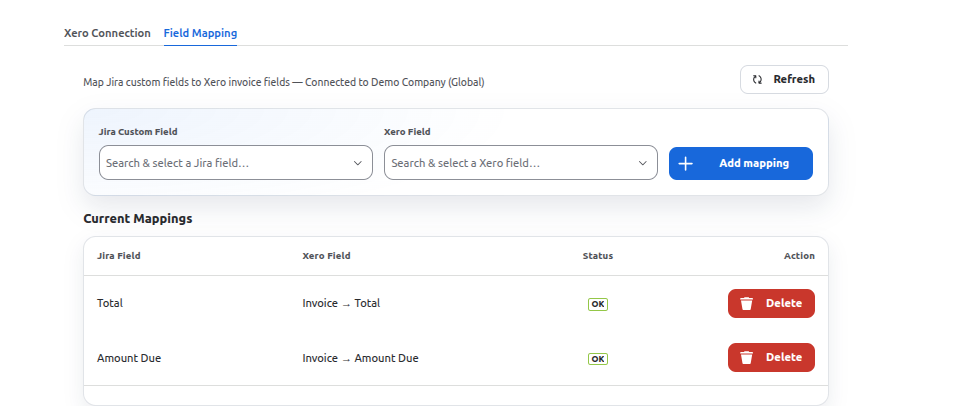
Example value in Jira:
Jira Field | Value |
Total, Amount due | 1181.25 31.39 |
💡 Tip: Enter the amount in the same format your team uses in Xero. Avoid adding currency symbols unless your Jira field and Xero mapping are designed to include them.
✅ Expected result: When the user opens the Xero activity tab, the app searches Xero for invoices that match the amount entered in Jira. If matching invoices are found, they appear directly inside the Jira issue.
ℹ️ Why this matters: Date filters help users find invoices by timing, such as invoices created on a specific date or invoices that are due for payment soon.
Use Invoice Date when users need to search by the date the invoice was issued. Use Due Date when users need to find invoices based on the payment deadline.
To use this filter, create Jira custom fields for the invoice date and/or due date, then map them to the matching Xero fields. This lets the app compare the date entered in Jira with the date stored on the Xero invoice.
Example mapping:
Jira Custom Field | Xero Field |
|---|---|
Invoice Date | Invoice->Date |
Due Date | Invoice->Due Date |
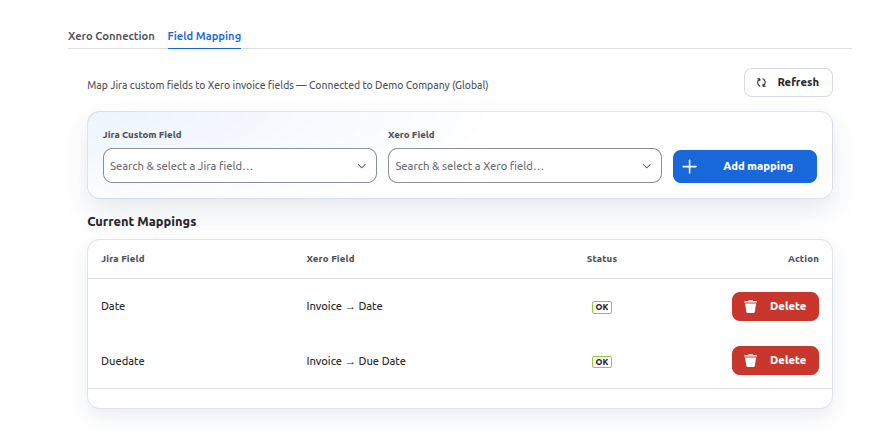
Example value in Jira:
Jira Field | Value |
Invoice Date | 2026-03-18 , 2026-03-07, 2026-03-20 |
Due Date | 2026-03-31, 2026-03-07, 2026-03-20 |
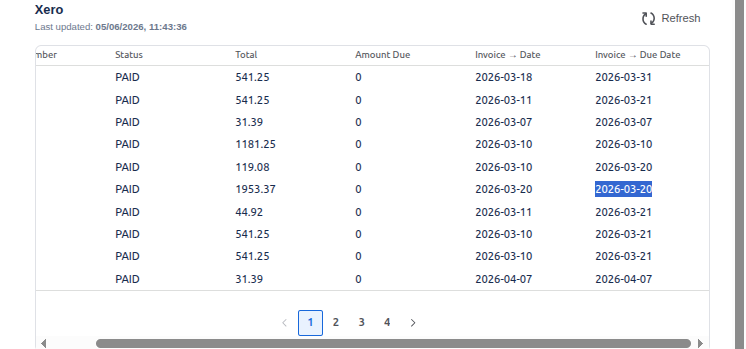
💡 Tip: Use a consistent date format in Jira, preferably the same format your team uses when checking invoices in Xero. This makes the filter easier to understand and reduces date-entry mistakes.
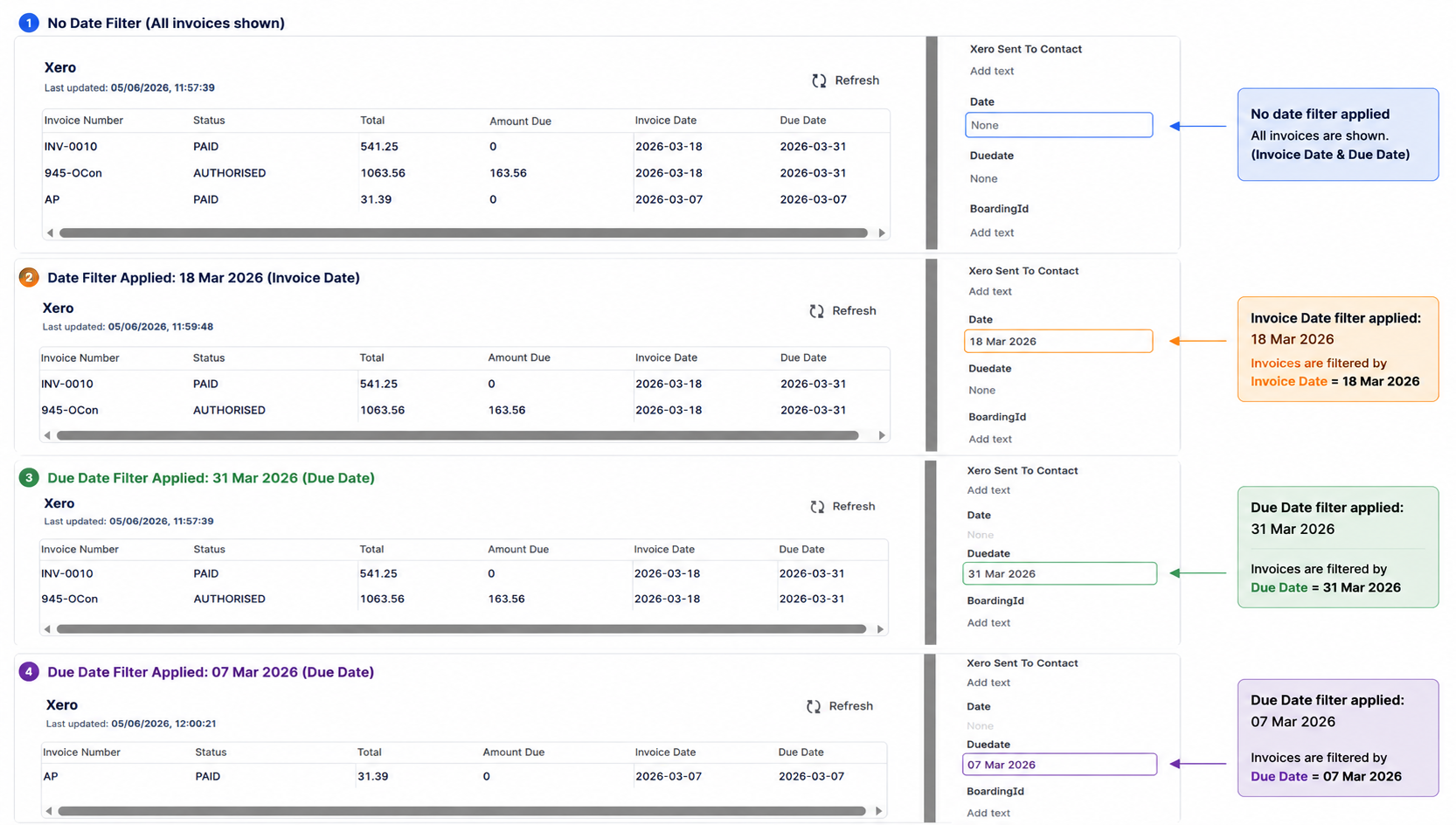
✅ Expected result: When the user opens the Xero activity tab, the app searches Xero for invoices that match the invoice date or due date entered in Jira. If matching invoices are found, they appear directly inside the Jira issue.
ℹ️ Why this matters: These filters are useful when users do not know the invoice number but still have other identifying details, such as a purchase reference, the customer name, or the currency code used on the invoice.
Use these filters when users need a more flexible way to identify the right invoice. Reference usually stores a purchase order number, internal note, or customer reference. Contact Name is the customer or organisation name on the invoice. Currency Code is the three-letter currency value used by Xero, such as USD, GBP, AUD, or INR.
To use this filter, create Jira custom fields for the details your team wants to search by, then map each Jira field to the matching Xero invoice field.
Example mapping:
Jira Custom Field | Xero Field |
|---|---|
Reference | Invoice → Reference |
Customer Name | Invoice → Contact → Name |
Currency Code | Invoice → Currency Code |
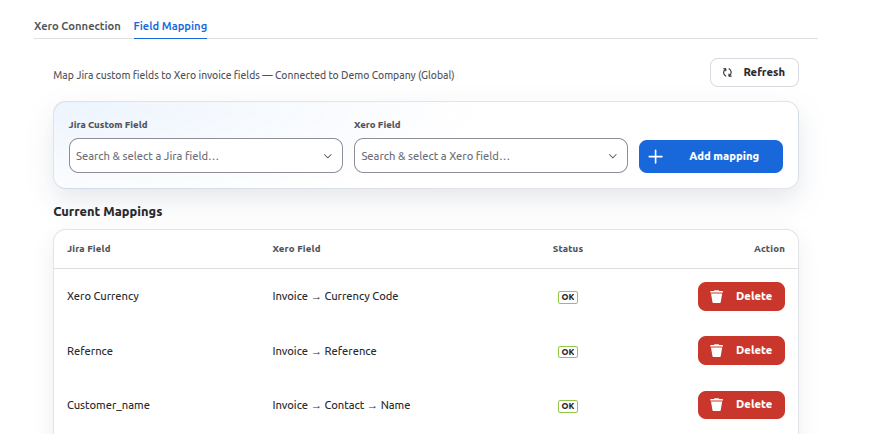
Example value in Jira:
Jira Field | Value |
|---|---|
Reference |
|
Customer Name | Boom FM,Truxton Property Management,PC Complete |
Currency Code |
|
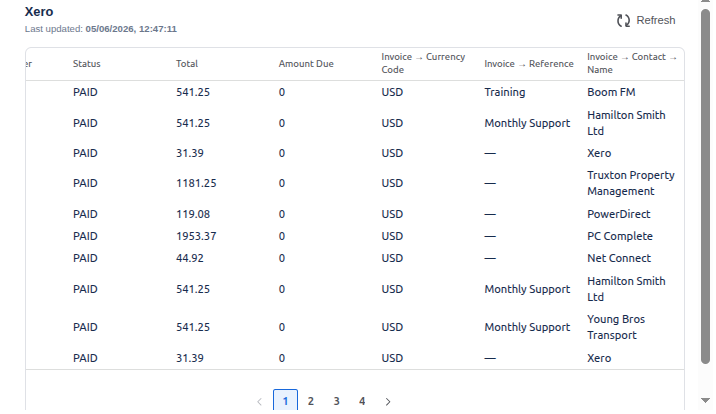
💡 Tip: Start with Reference or Contact Name if those are values your team already enters on Jira issues. Use Currency Code when users need to narrow results by invoice currency. Enter the standard three-letter code exactly as it appears in Xero, for example USD, GBP, AUD, or INR.
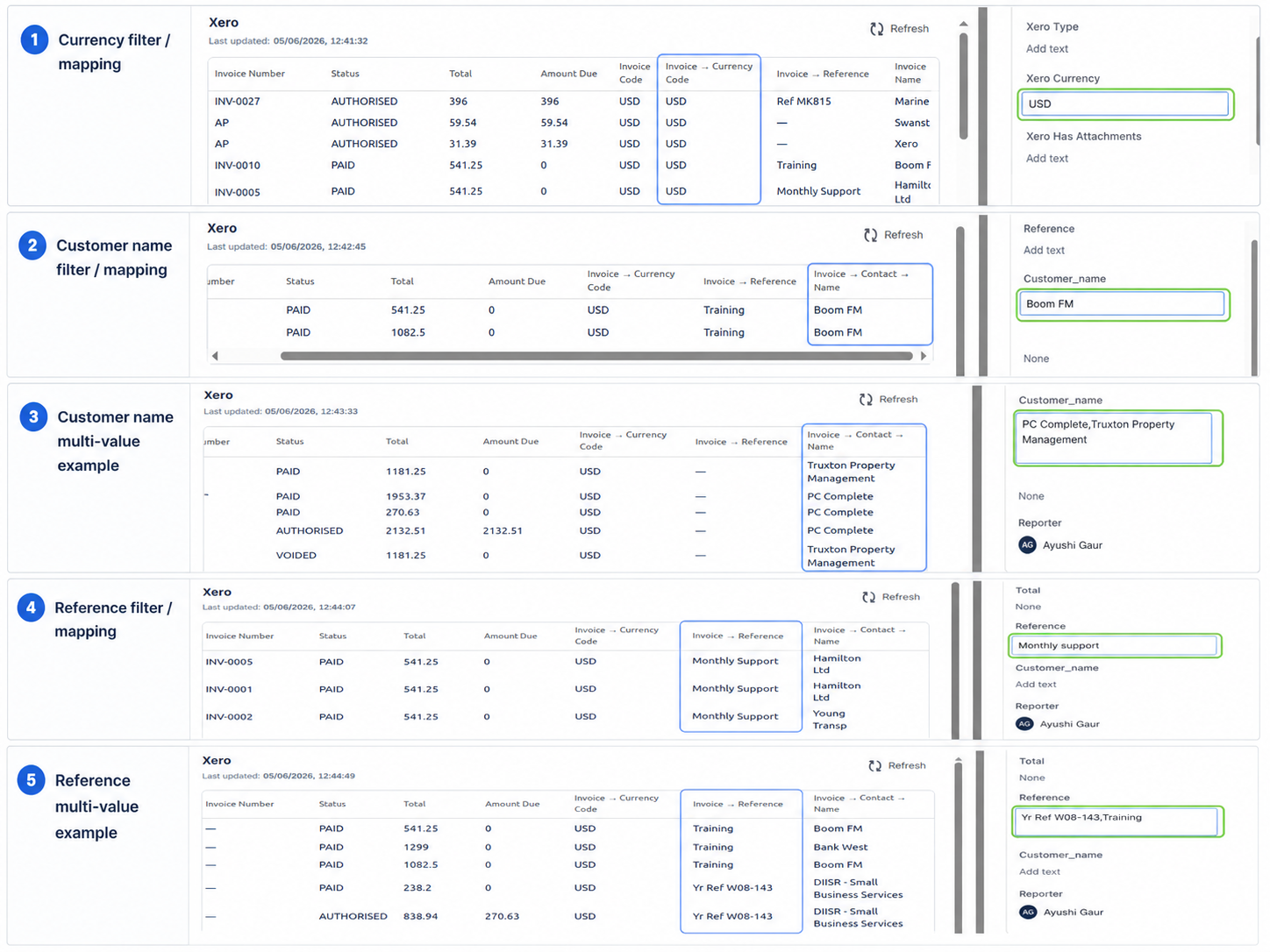
✅ Expected result: When the user opens the Xero activity tab, the app searches Xero for invoices that match the reference, contact name, or currency code entered in Jira. If matching invoices are found, they appear directly inside the Jira issue.
ℹ️ Why this matters: Tracking categories help users narrow invoice results by the way your business organises work, such as region, project, department, branch, or cost centre. This is especially useful when several invoices have similar customers, dates, or amounts.
In Xero, tracking categories are labels used to group invoices by business area. For example, your team might use them to separate invoices by Region, Project, Department, Branch, or Cost Centre.
Where to set this up in Xero:
Accounting → Advanced → Tracking categories
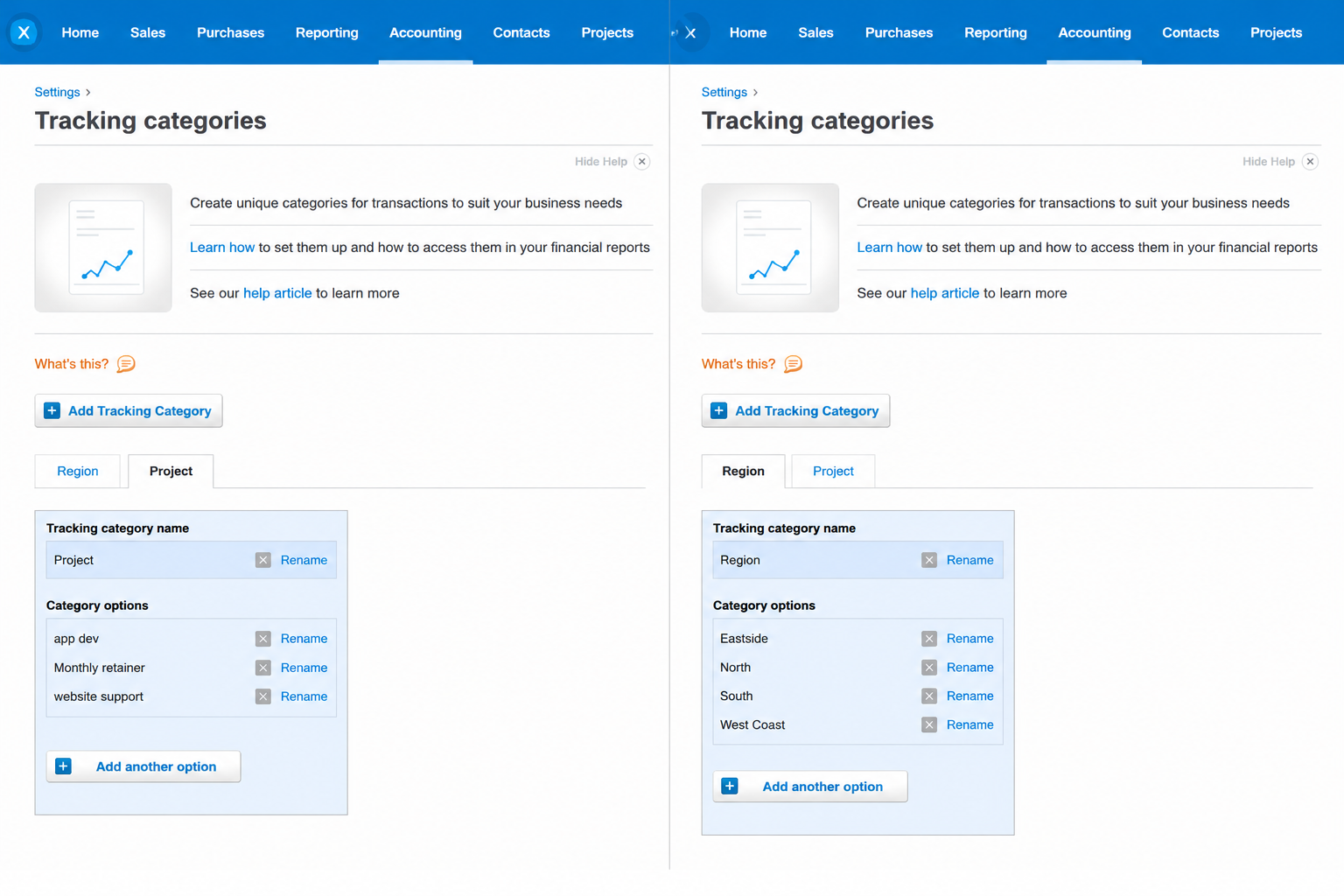
⚠️ Important: A Xero organisation can have up to four tracking categories in total, but only two tracking categories can be active at one time. Each tracking category can have multiple options, such as different regions or project names.
For example:
Tracking Category | Tracking Options |
|---|---|
Region | Eastside, North, South, West Coast |
Project | Website Support, App Dev, Monthly Retainer |
ℹ️ Why this matters: Matching the Jira field to the correct Xero tracking category tells the app exactly which business label to compare. If Xero uses categories such as Region and Project, create matching Jira custom fields and map them to the same Xero tracking fields.
Jira Custom Field | Xero Field |
Tracking Region | Tracking → Region |
Tracking Project | Tracking → Project |
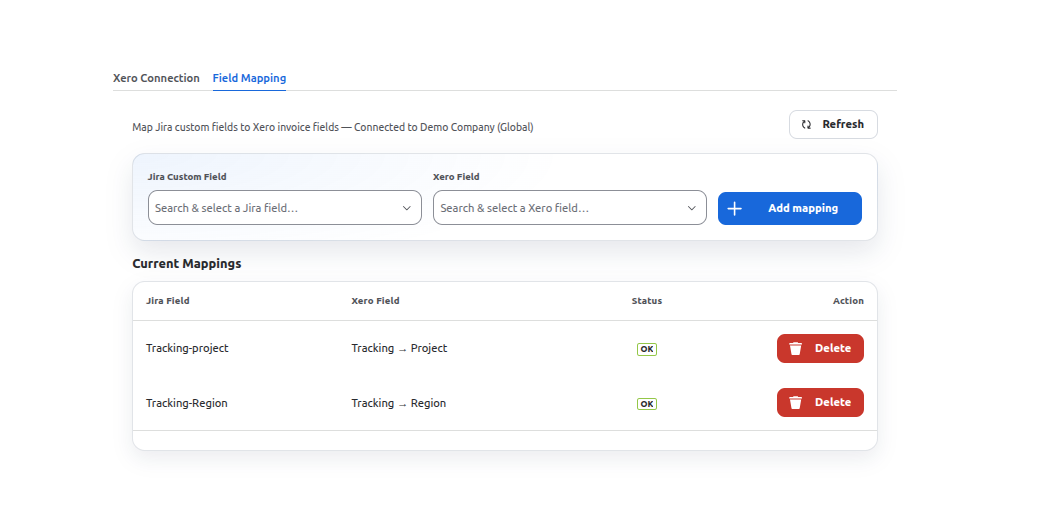
Example value in Jira:
Jira Field | Value |
Tracking Region | South |
Tracking Project | app dev |
✅ Expected result: When the user opens the Xero activity tab, the app searches for invoices that match the tracking category value entered in the Jira issue. Matching invoices appear directly inside the Jira issue.
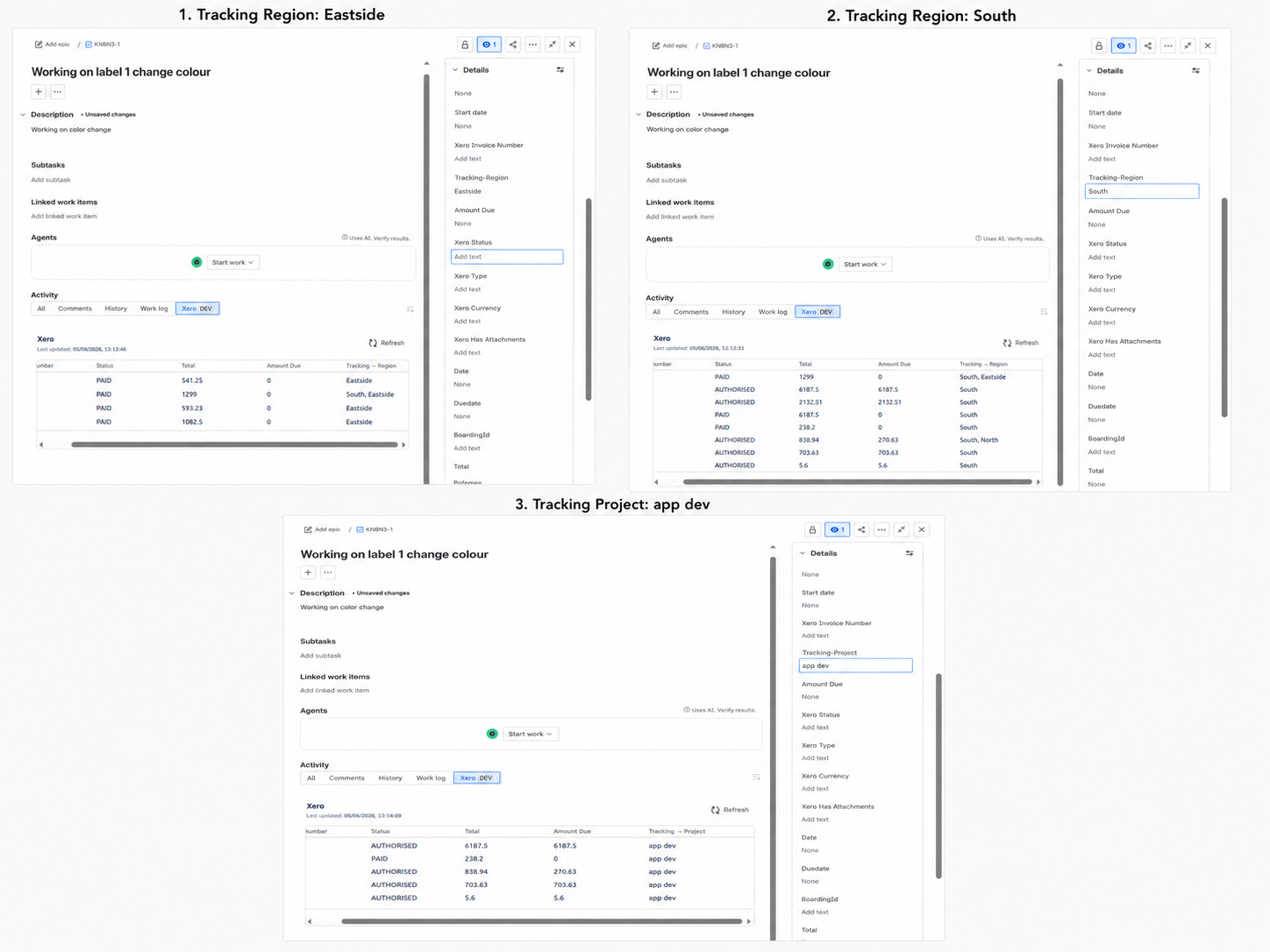
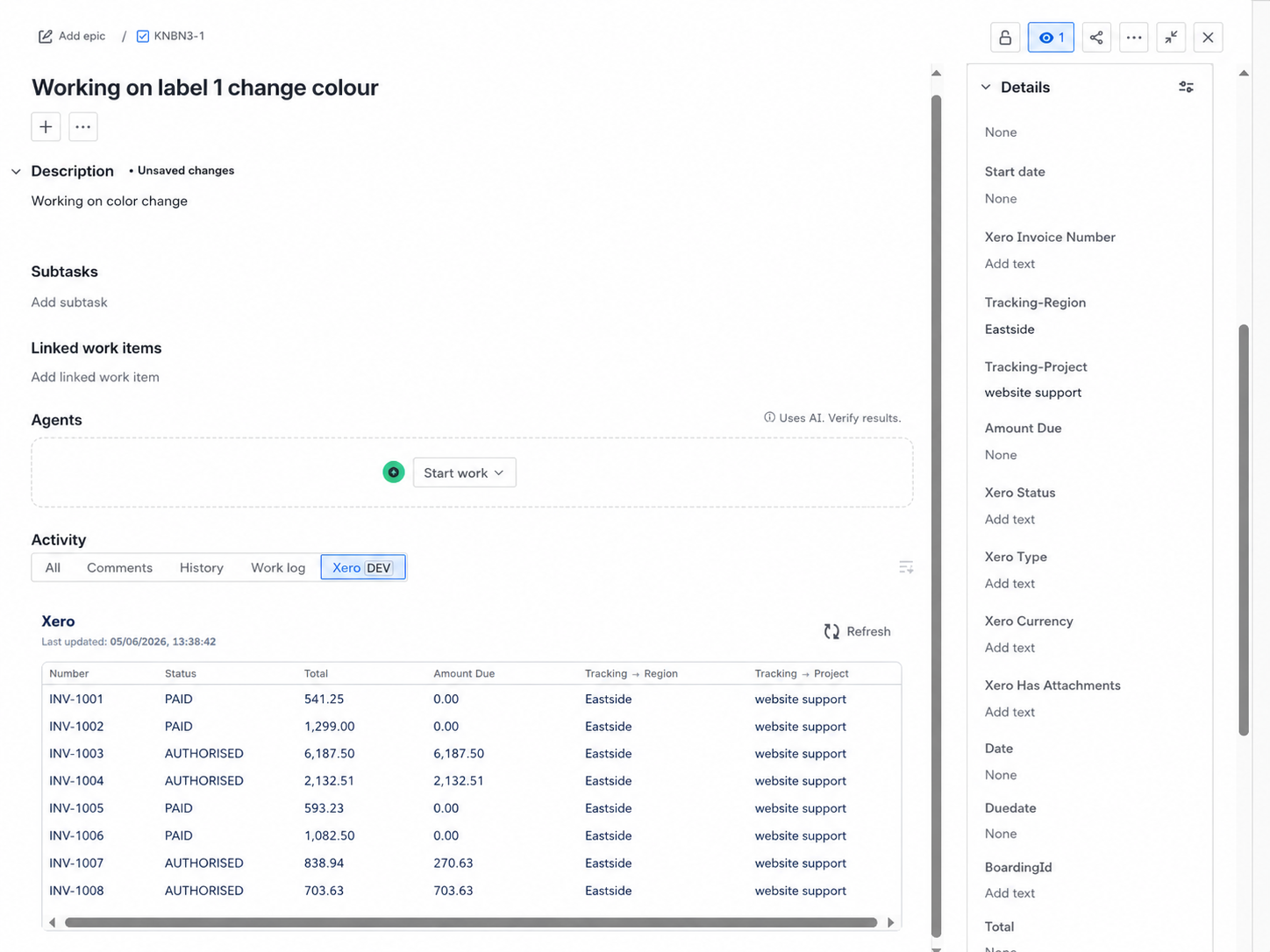
⚠️ Note: When mapping tracking categories, make sure the Jira field is mapped to the same Xero tracking category. For example, map Tracking Region only with Tracking → Region, not with Project or any other tracking category.
💡 Tip: You are right — this chart should include every Jira custom field used in the filter examples above, without skipping fields or repeating the same information. Use it as the single reference for field name, recommended Jira field type, example value, and matching Xero field.
Jira field | Recommended field type | Example value used in this guide | Matching Xero field |
|---|---|---|---|
Xero Invoice Number | Short text |
| Invoice Number |
Invoice Reference | Short text |
| Reference |
Invoice Status | Short text or Select list |
| Status |
Amount Due | Number field or Short text |
| Invoice → Amount Due |
Total | Number field or Short text |
| Invoice → Total |
Invoice Date | Date picker |
| Invoice → Date |
Due Date | Date picker |
| Invoice → Due Date |
Reference | Short text |
| Invoice → Reference |
Customer Name | Short text |
| Invoice → Contact → Name |
Currency Code | Short text or Select list |
| Invoice → Currency Code |
Tracking Region | Short text or Select list |
| Tracking → Region |
Tracking Project | Short text or Select list |
| Tracking → Project |
Common customer use cases
ℹ️ Why this matters: These examples show practical ways teams can use Vamhi Xero Settings after Xero is connected and Jira fields are mapped. Use the scenario that matches how your team works today.
Use case | When to use it | How it helps |
|---|---|---|
View invoice details in Jira | Use this when support, project, or operations teams need to check invoice information while working on a Jira issue. | Users can open the Xero activity tab and review matching invoice details without switching to Xero separately. |
Track payment status | Use this when teams need to know whether an invoice is | Users can quickly understand the invoice stage and decide the next action from the Jira issue. |
Find invoices by amount or total | Use this when users know the invoice amount, such as | Finance and delivery teams can narrow down matching invoices using values already entered on the Jira issue. |
Search by date | Use this when users need to find invoices by Invoice Date or Due Date. | This helps teams check invoices issued or due on specific dates, such as |
Search by customer, reference, or currency | Use this when users do not know the invoice number but know details such as | The app can search Xero using reference, customer name, or currency code values mapped from Jira. |
Filter by tracking categories | Use this when your Xero invoices are organised by tracking values such as Region or Project. | Users can find invoices linked to values such as |
